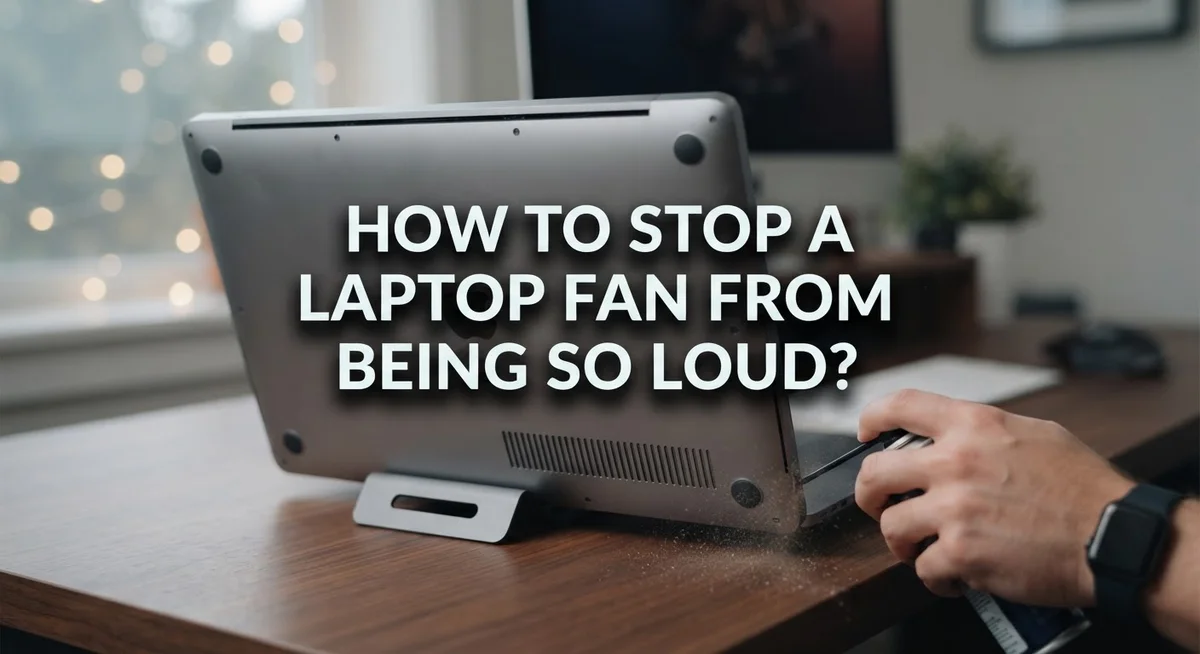
How to Stop a Laptop Fan From Being So Loud: A Troubleshooting Guide
Does your laptop sound like a jet engine every time you open it? You are not alone.
A loud laptop fan is one of the most common tech complaints today. It usually means your system is working too hard or getting too hot.
Dust buildup, heavy programs, and blocked vents often cause this noise. Sometimes old drivers or poor power settings make things worse too.
The good news? You can fix this problem yourself. You do not need to be a tech expert to quiet things down.
This guide will show you simple and effective ways to reduce fan noise. We will cover cleaning tips, software fixes, and smart cooling habits.
You will also learn which mistakes to avoid. For example, never turn off your fan completely, even during light tasks. This can lead to serious overheating damage.
By the end of this article, you will understand why your fan gets loud. More importantly, you will know exactly how to fix it.
Let’s help your laptop run cooler and quieter, starting today.
In a Nutshell
Here’s a quick summary to help you fix a noisy laptop fan fast.
-
Clean the dust first. Dust buildup is the top reason fans get loud. Clear your vents and internal fans often to keep air flowing.
-
Watch your running programs. Too many open apps force your fan to work harder. Close what you don’t need to ease the load.
-
Keep software updated. Old drivers can make your system run inefficiently. Regular updates help your laptop manage heat better.
-
Adjust your power settings. Switching to a balanced or power saving mode reduces strain on your processor. This directly lowers fan speed.
-
Try external cooling tools. A cooling pad or laptop stand can boost airflow around your device. This helps your internal fan work less.
-
Never disable your fan completely. This is risky and can cause serious overheating damage. Fans protect your laptop, even during light use.
Follow these steps together for the best results. A little maintenance goes a long way toward a quieter laptop.
Why Laptop Fans Get Loud: Understanding the Causes
Your laptop fan gets loud because your system is working hard to cool itself down. Think of it like this: when your processor gets hot, the fan spins faster to push cool air through the vents. The faster it spins, the louder the noise becomes.
Dust is the biggest culprit behind fan noise. Over time, dust settles on your vents, fans, and internal components. This dust blocks airflow and traps heat inside your laptop. When heat builds up, your fan has to work overtime to cool things down. The result? A much louder machine.
Running too many programs at once also causes fan noise. Each app you open uses processor power. Heavy programs like video games, photo editing software, or multiple browser tabs force your CPU to work harder and generate more heat. Your fan responds by spinning faster to manage that extra heat.
Blocked vents are another common reason for loud fans. If you use your laptop on soft surfaces like beds or couches, you accidentally cover the air vents. This stops cool air from flowing in and hot air from flowing out. Your system overheats quickly, and the fan kicks into high gear.
Outdated drivers and software can also trigger fan noise. Old system drivers make your hardware run inefficiently. This wastes energy and creates unnecessary heat. Your fan then works harder than it should.
Finally, ambient temperature matters. On hot days, your laptop struggles more to stay cool. Your fan will naturally run louder in warm environments.
Understanding these causes helps you fix the problem at its source. Each cause has a specific solution that actually works.
Cleaning Vents and Fans to Remove Dust Buildup
Dust buildup inside your laptop is the leading cause of fan noise. Over time, particles accumulate on fan blades and clogged vents. This forces your fan to work harder, creating that annoying sound you hear.
Cleaning your vents and fans is one of the quickest fixes available. Start by shutting down your laptop completely and unplugging it. Wait a few minutes for the system to cool down fully.
Locate your laptop’s air vents. Most devices have vents on the sides, back, or bottom. Use a can of compressed air to blow out dust from these openings. Hold the can upright and use short bursts. Point the nozzle at a slight angle into each vent.
For stubborn dust, you can open your laptop’s access panel if you feel comfortable doing so. Many laptops have a removable panel underneath that gives you direct access to the fan. Check your device manual for specific instructions. If you are unsure, consider having a professional handle this step.
Never use a vacuum cleaner near your laptop. Static electricity from vacuums can damage internal components. Compressed air is your safest option.
After cleaning, power on your laptop and listen for changes. You should notice the fan running quieter immediately. If noise persists, dust may not be your only problem.
Clean your vents every few months to prevent future buildup. This simple maintenance task keeps your laptop running smoothly and quietly. Regular cleaning also extends your fan’s lifespan and improves overall system performance.
Managing Background Programs and System Load
Your laptop’s fan works harder when your system is busy. Background programs consume processing power, which generates heat. When your processor heats up, the fan spins faster to cool it down. This is why you hear loud noise during intensive tasks.
Start by checking what programs run in the background. Open your task manager or activity monitor. Look for apps you don’t actively use. Close unnecessary programs to reduce system load immediately.
Browser tabs are silent culprits. Each open tab uses memory and processing power. Close tabs you’re not reading. This simple step often reduces fan noise noticeably.
Check your startup programs next. Some apps launch automatically when you boot your laptop. Disable programs you don’t need at startup. This keeps your system load lighter from the moment you turn on your device.
Monitor your CPU and memory usage regularly. High usage numbers mean your fan will work harder. If certain programs spike your usage, consider closing them or finding alternatives.
Update your background services and applications. Outdated software runs inefficiently and forces your processor to work overtime. Regular updates improve performance and reduce unnecessary heat generation.
Consider your power settings too. Running your laptop in high performance mode increases processor speed constantly. Switch to balanced or power saving mode for everyday tasks. Your fan will spin slower because your processor won’t be pushed as hard.
Managing background load is preventative maintenance. It stops problems before they start. Combine these steps with regular cleaning for the best results. Your laptop will run cooler and quieter throughout the day.
Updating Drivers and Software for Optimal Performance
Outdated drivers and software can force your system to work harder than necessary, which makes your fan spin faster and louder. Your laptop’s drivers act as communication tools between your hardware and operating system. When these are old, your system struggles to manage resources efficiently.
Start by checking your current driver versions. Go to your device manager and look for any yellow warning signs next to hardware items. These signs mean your drivers need updates. You can also visit your laptop manufacturer’s support website to download the latest drivers for your specific model.
Software updates matter just as much as driver updates. Your operating system releases patches that improve performance and reduce system strain. These updates often include fixes that help your computer run cooler and quieter. Enable automatic updates so you never miss important releases.
Pay special attention to your graphics card drivers. Graphics drivers have a huge impact on fan noise because they control how hard your GPU works. Updating these can significantly reduce unnecessary processing load.
After updating drivers, restart your laptop completely. This ensures all changes take effect properly. Monitor your fan noise during normal use over the next few days.
Regular updates prevent many performance issues before they start. You should check for driver updates at least once a month. Set a calendar reminder so you don’t forget.
Combining driver updates with the other steps you’ve already taken creates a complete solution. Your fan will work more efficiently because your system won’t be forced to compensate for outdated software. This approach addresses the problem from multiple angles for lasting results.
Adjusting Power Settings to Reduce Fan Strain
Power settings control how hard your laptop works. When your system runs at maximum performance constantly, your fan must work overtime to cool everything down. Adjusting these settings reduces strain on your hardware and keeps noise levels lower.
Start by accessing your power settings through your system preferences. Look for options labeled “Power Plan” or “Energy Settings.” Most laptops offer several preset modes like High Performance, Balanced, and Power Saver.
High Performance mode pushes your processor to run at full speed all the time. This setting makes sense during gaming or video editing, but it’s unnecessary for everyday tasks like browsing or writing. Switch to Balanced mode for normal daily use. This setting automatically adjusts your processor speed based on what you’re actually doing.
You can also customize your power plan manually. Reduce your processor’s maximum speed during light work. Lower processor speeds mean less heat generation, which means your fan doesn’t need to spin as fast.
Pay attention to screen brightness settings too. Bright displays require more power and generate more heat. Lowering brightness reduces overall system heat and fan activity.
Set your laptop to sleep mode after a few minutes of inactivity. This prevents your system from running unnecessary background processes while you’re away.
Check your hard drive settings as well. Some laptops allow you to reduce hard drive spin speed, which cuts down on heat and power consumption.
These adjustments work best when combined with cleaning and background program management. Together, they create a comprehensive approach to reducing fan noise. Test each change to see which settings work best for your typical usage patterns.
Using External Cooling Solutions for Better Airflow
External cooling solutions work by pulling heat away from your laptop and pushing cool air across its surfaces. These devices improve airflow around your system, which reduces the strain on your internal fan.
A cooling pad with multiple fans is the most common external solution. These pads sit underneath your laptop and create airflow from below. The fans push air upward, helping your laptop’s vents expel hot air more effectively. This setup reduces internal temperatures and allows your fan to spin slower and quieter.
Laptop stands also help with airflow. They elevate your device at an angle, which creates space underneath for air to flow freely. Better airflow means your internal fan doesn’t work as hard. You don’t need a powered stand for this to work. Even a simple passive stand improves ventilation significantly.
The key is creating a path for air to move. Your laptop’s vents need clear space around them to function properly. External solutions remove obstacles and guide cooler air toward hot components.
Combine external cooling with your other efforts for the best results. Use a cooling pad while you’re doing intensive work like gaming or video editing. Pair it with your cleaned vents and optimized power settings. This combination tackles the problem from multiple angles.
External solutions work best when your laptop is already clean inside. Dust buildup still blocks airflow even with a cooling pad running. So clean your vents first, then add external cooling if you still hear loud fan noise.
These solutions are especially helpful during summer months or in warm environments. They give your laptop extra cooling capacity when ambient temperatures rise.
Common Mistakes That Make Fan Noise Worse
Many people make simple mistakes that turn a slightly loud fan into an unbearable noise problem. Understanding these errors helps you avoid them and keep your laptop quiet.
Blocking air vents is one of the biggest mistakes. When you use your laptop on a bed, pillow, or soft surface, you cover the vents completely. Your fan works much harder because hot air gets trapped inside. Always use your laptop on hard, flat surfaces like desks or tables. Keep at least a few inches of space around all sides of your device.
Ignoring dust buildup makes everything worse. Dust clogs your vents and prevents cool air from entering. Your fan spins faster trying to cool an overheated system. Many people wait until their laptop sounds like a jet engine before cleaning it. Clean your vents every few months, not just when problems start.
Running too many programs simultaneously forces your fan to work overtime. Background apps consume processing power even when you are not using them actively. Close programs you are not actively using right now.
Never disable your fan to reduce noise. This is dangerous and leads to serious hardware damage. Your fan exists to protect your laptop from overheating. Turning it off might seem like a quick fix, but it destroys your system much faster.
Leaving your laptop in direct sunlight adds unnecessary heat. The sun warms your device from outside while your processor generates heat from inside. This combination makes your fan spin at maximum speed.
Finally, avoid placing your laptop near heat sources like radiators, vents, or space heaters. External heat forces your system to work harder to stay cool. These simple mistakes multiply the noise problem, but fixing them is straightforward and free.
Troubleshooting Persistent Fan Noise Issues
When your laptop fan keeps running loud despite your efforts, you need a systematic approach to find the root cause. Start by checking your system’s temperature using built in monitoring tools. High temperatures confirm that overheating is driving the noise.
Dust buildup remains the most common culprit. Even if you cleaned your vents before, dust accumulates quickly over time. Use compressed air to blow out vents from the outside, holding the can upright. Never shake the can, as this releases liquid that can damage components.
Next, open your task manager or activity monitor to see which programs consume the most CPU power. Close unnecessary background applications immediately. Web browsers with many tabs, cloud sync services, and update utilities often run silently while consuming significant resources.
Check if your drivers are current. Outdated graphics drivers and chipset drivers can cause your system to work inefficiently. Visit your laptop manufacturer’s support page to download the latest versions.
Thermal paste degradation happens over years of use. If your laptop is several years old and still loud after cleaning and software fixes, the thermal paste between your processor and heatsink may have dried out. This requires professional service to replace safely.
Test your fan during light tasks like web browsing. If noise persists during low demand periods, a mechanical fan failure may be occurring. Listen for grinding or clicking sounds that suggest hardware damage.
Sometimes the issue is simple: your laptop sits on a soft surface that blocks airflow. Place it on a hard, flat desk instead. Ensure at least two inches of space around all sides for air circulation. These basic checks solve most persistent fan noise problems before requiring technical intervention.
Final Thoughts
A loud laptop fan is not something you should ignore. It tells you your system needs attention right away.
Most fan noise problems have simple fixes. Clean your vents often. Close programs you do not need. Keep your drivers updated.
These small habits make a big difference over time. They also help your laptop last longer.
Never disable your fan to stop the noise. This puts your hardware at serious risk. Overheating can damage your processor permanently.
Think of fan noise as useful information. Your laptop tells you when it works too hard or needs cleaning.
If basic steps do not solve the problem, try external cooling tools. A cooling pad or stand can boost airflow quickly.
For older laptops, thermal paste may need replacement. This service often fixes noise that other methods cannot.
Regular maintenance prevents most fan issues. Set a simple schedule to clean your laptop every few months.
Check running programs when your fan gets loud unexpectedly. This quick check often reveals the real cause.
Watch for patterns in your fan noise. Notice if it happens during specific tasks or times of day.
This helps you find solutions faster next time. You will spend less time guessing and more time fixing.
A quiet laptop is possible with steady care. You do not need constant effort, just consistent habits.
Start with the easy steps first. Clean your vents, manage your programs, and update your software.
Add external cooling if you still need more help. These combined efforts keep your laptop cool and quiet.
Your laptop will thank you with better performance. You will also avoid costly repairs down the road.
Take action today rather than waiting for bigger problems. A little care now saves you trouble later.
Frequently Asked Questions
Why does my laptop fan get loud when I’m just browsing the internet?
Your fan shouldn’t work hard during light browsing. If it does, something is running in the background. Check your task manager to see which programs use CPU power. You might have updates installing, antivirus scans running, or browser tabs consuming resources. Close unnecessary programs and tabs. Also verify your laptop sits on a hard, flat surface so air can flow underneath properly.
Is it safe to use my laptop with a loud fan?
A loud fan is actually your laptop protecting itself. The noise means your system is hot and the fan is cooling it down. This is safe and necessary. What’s unsafe is ignoring the noise or trying to disable the fan. Your laptop needs that fan running to prevent overheating and hardware damage.
How often should I clean my laptop vents?
Clean your vents every 2 to 3 months if you use your laptop daily. If you work in a dusty environment, clean monthly. Dust buildup happens faster than you think. Regular cleaning prevents most fan noise problems. Use compressed air to blow dust out of the vents. Hold the can upright and use short bursts.
Can a cooling pad really make a difference?
Yes. A cooling pad improves airflow around your laptop and helps heat escape faster. This reduces the temperature your fan needs to manage. Your fan won’t work as hard, so noise decreases. Cooling pads are especially helpful during gaming or video editing when your system generates lots of heat.
What should I do if cleaning and closing programs don’t help?
Check if your drivers need updates. Outdated drivers cause fans to work inefficiently. Update your graphics driver and chipset driver through your system settings. Also check your power settings. Some laptops have performance modes that make fans spin faster. Switch to a balanced mode for everyday use.

Dillip is the founder and editor of Switch & Size, where he breaks down tech products, accessories, and gadgets to help readers make smarter buying decisions. With a passion for testing and comparing the latest technology, he delivers honest reviews, in-depth guides, and side-by-side comparisons that cut through the marketing noise.