How to Fix a Monitor With No Signal: Complete Troubleshooting Guide
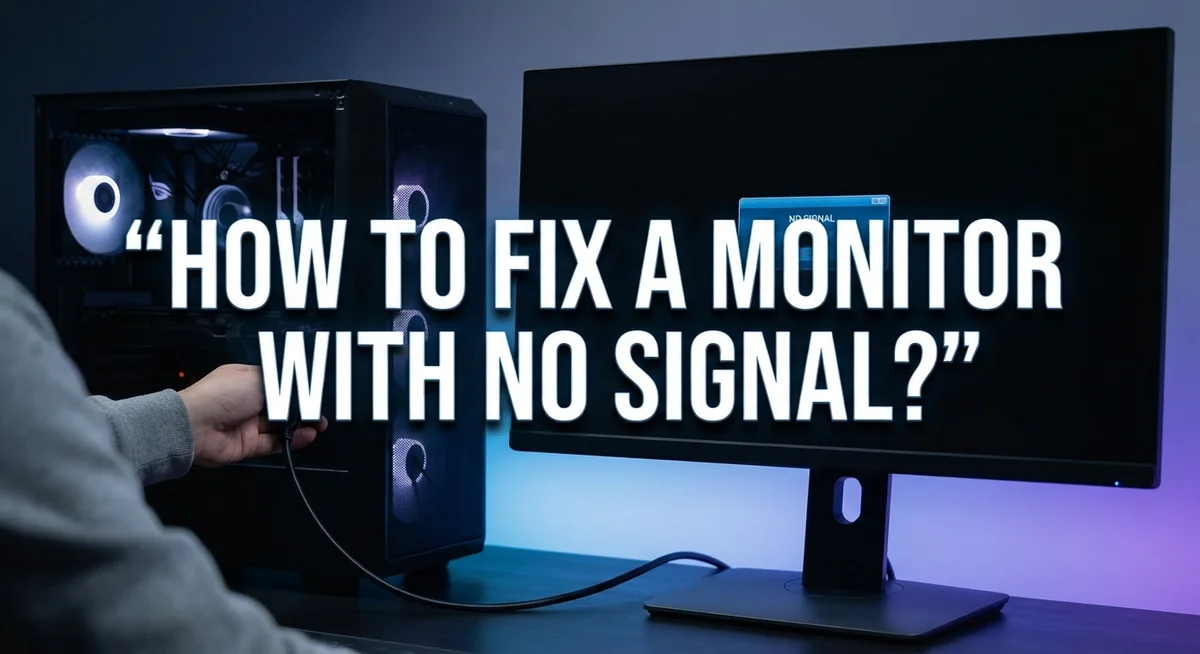
You turn on your computer. The fans spin. The hard drive hums. But your screen stays black with a “No Signal” message staring back at you.
This is one of the most frustrating tech problems you can face. Your PC seems fine, but your monitor acts like it’s not even connected.
The good news? This problem is often easy to fix. In most cases, the issue is not a broken monitor or a dead computer. It is simply a disconnected or faulty video signal between your PC and your display.
This guide will walk you through simple, proven steps to get your screen working again. You will learn how to check your cables the right way. You will discover why testing different ports matters. You will also find out how adapters and hubs can sometimes cause this exact issue.
By the end, you will know exactly how to diagnose and solve a “No Signal” error. No tech expertise needed. Just follow along, and let’s get your monitor back on track.
In a Nutshell
Here is a quick summary to fix your “No Signal” error fast:
-
Power off your PC completely. Wait a few seconds before turning it back on. This simple restart can clear temporary glitches.
-
Check your cable connections. Make sure the cable is firmly plugged into both the monitor and the computer. A loose cable is often the culprit.
-
Try a different cable. Your current cable might be damaged. Testing with a known working cable helps you rule this out quickly.
-
Switch the ports you are using. Plug the cable into a different port on your graphics card and monitor. This helps identify a faulty port.
-
Remove any adapters or docks. These devices can sometimes block the signal. Connect your monitor directly to your PC to test the connection.
-
Test different display outputs. If your monitor has multiple input options, cycle through them to find the active signal.
Following these steps helps you spot the issue and fix it without confusion.
What Does ‘No Signal’ Actually Mean?
When your monitor displays “No Signal,” it means your computer and display cannot communicate properly. The video connection between these two devices has been interrupted or broken somewhere along the chain.
Here’s what’s happening behind the scenes. Your computer’s graphics card sends video data through a cable to your monitor. The monitor then displays that information on your screen. When “No Signal” appears, this data transfer has stopped completely.
The important thing to understand is that your computer might still be running normally. Your fans could be spinning. Your hard drive might be working. Your keyboard lights might be on. But your monitor cannot receive the video feed, so it shows you a blank screen with “No Signal” displayed.
This disconnection can happen for several reasons. The cable connecting your PC to the monitor might be loose or damaged. The ports where the cable plugs in could be faulty. An adapter or hub in the middle of your setup might be causing problems. Your graphics card settings could have changed. Or your monitor itself might need attention.
The good news is that “No Signal” errors rarely mean your computer is broken. Most of the time, it’s simply a connection issue you can fix yourself.
Think of it like a phone call that got dropped. Both phones still work fine. The problem is just that the connection between them failed. Once you restore that connection, everything works again.
Understanding this basic concept helps you troubleshoot more effectively. You know the issue is about the video pathway, not your entire computer system. This knowledge guides you toward the right solutions and saves you time.
Common Causes Behind a No Signal Error
A “No Signal” error happens when your computer and monitor lose their video connection. Your PC might be running perfectly fine, but the display stays blank because the signal path is broken somewhere.
The most common culprit is a loose cable. Your monitor cable might look plugged in, but it could be sitting just slightly loose in the port. Even tiny gaps prevent video data from flowing through. This is why reseating cables firmly is always the first step.
Faulty or damaged cables cause many “No Signal” problems too. If your cable has been bent, twisted, or sat under heavy objects, the internal wires inside can break. The cable looks fine on the outside, but it cannot carry the signal anymore.
Your graphics card and monitor each have multiple ports. Sometimes one port stops working while others function normally. You might be plugging into a dead port without realizing it.
Adapters and docks create another common problem. These devices sit between your cable and your computer. If they are damaged, outdated, or incompatible, they block the signal completely. Removing them temporarily helps you figure out if they are the issue.
Resolution settings can also cause “No Signal” errors. If your PC switches to a resolution your monitor cannot display, you will see a blank screen even though both devices are connected properly.
Finally, your monitor itself might have an input issue. Monitors have input selection buttons that let you choose between HDMI, DisplayPort, or other connection types. If the wrong input is selected, you will see “No Signal” even with a perfect connection.
Initial Checks Before You Start Troubleshooting
Before you dive into complex troubleshooting, take a few minutes to check the basics. Most “No Signal” problems come from simple connection issues that you can fix in seconds.
Start by powering down your computer completely. Don’t just restart it. Turn off your PC, wait about 30 seconds, and let everything settle. This gives your system time to reset properly.
Next, inspect your monitor cable carefully. Look at both ends of the cable connecting your monitor to your computer. The cable should be plugged in firmly at the monitor port and at your graphics card or computer port. A loose connection is the number one cause of “No Signal” errors. Push the cable connector in until you hear it click or feel resistance.
Check that your monitor is powered on. Look for a light indicator on the monitor itself. Some monitors have a small LED that shows when power is active. If there’s no light, plug the monitor into a different power outlet to rule out electrical problems.
Verify your monitor is set to the correct input source. Most monitors have multiple input ports like HDMI, DisplayPort, or VGA. Your monitor might be looking for a signal on the wrong port. Check your monitor’s menu or buttons to switch between available inputs.
Look at your graphics card or computer’s video output ports. Make sure you’re using the correct one. Laptops and desktops have different port configurations, so confirm you’re plugging into an active video port.
Take a moment to examine the cable itself for visible damage. Look for bent pins, frayed sections, or discoloration. Any visible damage means you need a replacement cable.
Step-by-Step Guide to Fixing a No Signal Monitor
Start by shutting down your computer completely. Don’t just restart it. Wait about 30 seconds before moving forward. This gives all components time to reset properly.
Next, locate where your monitor cable connects to your computer. You’ll find the video port on either your graphics card or your computer’s motherboard. Gently but firmly reseat the cable by unplugging it completely and plugging it back in. Make sure it’s fully inserted and snug.
Do the same at the monitor end. The cable should click or feel secure when properly connected. Many “No Signal” issues happen because cables aren’t fully seated.
Now try a different video port on your graphics card or motherboard. Most computers have multiple output options. Switching ports helps you determine if one port is faulty. Reconnect your monitor cable to this new port.
If you’re using adapters or docking stations, remove them temporarily. These devices can interrupt the video signal. Connect your cable directly from your monitor to your computer instead.
Turn on your computer and see if the monitor displays anything. If you still see no signal, try a different monitor cable if you have one available. Use a cable you know works properly. This helps identify whether your original cable is damaged.
Check your monitor’s power light. It should be on and showing a steady glow. If it’s off, your monitor isn’t receiving power. Verify the monitor’s power cable is plugged into both the monitor and a working outlet.
Take your time with each step. Rushing through connections often causes you to miss loose cables. Most no signal problems resolve once you properly reseat connections or try alternate ports.
Testing Cables, Ports, and Adapters Properly
Testing your cables, ports, and adapters properly takes patience and a systematic approach. Start by powering off your computer completely before you touch anything. This protects your hardware and ensures you get accurate results.
Next, locate your monitor cable at both ends. Gently disconnect it from your computer first, then from your monitor. Look closely at each connector for bent pins, corrosion, or visible damage. Even small issues prevent signals from traveling through.
Now reseat the cable firmly into both ports. Push it in until you hear or feel a click. Many “no signal” problems disappear after this simple step. The cable may have looked connected but was just barely touching.
Try a different video port on your graphics card or motherboard. Most computers have multiple options like HDMI, DisplayPort, or DVI. Plug your cable into a port you haven’t used yet. This tells you if the original port is faulty.
If you use adapters, hubs, or docking stations, remove them temporarily. These devices sometimes block or interfere with video signals. Connect your cable directly to your computer instead. This eliminates one potential problem source.
Test with a different cable if you have one available. A known working cable quickly reveals whether your current cable is damaged. Borrow one from another device if needed.
Check your monitor’s input source settings. Press the menu button on your monitor and verify it’s listening to the correct port. Some monitors default to the wrong input after power loss.
Take your time with each connection. Rushing causes you to miss loose cables or forget steps. Work through these tests one at a time, and you’ll find your problem.
Advanced Fixes When Basic Steps Don’t Work
When basic troubleshooting steps don’t restore your monitor’s signal, you need to dig deeper into the system. The issue may involve your graphics card, driver software, or hardware conflicts that require more targeted fixes.
Start by accessing your computer’s BIOS or UEFI settings. You can usually do this by restarting your computer and pressing Delete, F2, or F12 during startup (check your motherboard manual for the exact key). Look for graphics settings and ensure your primary display output is set correctly. Some systems default to integrated graphics instead of your dedicated GPU.
Next, update or reinstall your graphics card drivers. If your monitor shows no signal, you may need to use a different computer or a USB drive to download the latest drivers. Outdated or corrupted drivers frequently cause display problems even when hardware connections are fine.
Remove your graphics card completely if you have a dedicated GPU. Power down your system, open the case, and reseat the card firmly into its slot. Dust buildup inside the card slot can block proper connections.
Test your monitor on another computer if possible. This tells you whether the problem lies with your monitor or your PC. A working monitor on another system confirms your display is fine and the issue is with your original computer.
Check for loose internal cables inside your computer case. Video cables connecting to your motherboard or GPU may have shifted during transport or cleaning. Ensure all power connections to your graphics card are secure as well.
If your system has integrated graphics, try using those ports instead of your dedicated GPU. Sometimes a faulty graphics card causes the entire display to fail, and integrated graphics can serve as a temporary workaround while you investigate further.
Common Mistakes That Delay a Fix
Many people rush through troubleshooting steps and miss simple fixes. Impatience costs valuable time when fixing a no signal problem.
One major mistake is not fully powering down your computer. Simply restarting won’t always reset all connections properly. You need to shut down completely, wait a few seconds, and then power back on.
Another common error involves loose cable connections. People often assume cables are seated firmly when they’re actually not. Push your monitor cable firmly into both the computer port and monitor port until you hear a click or feel resistance. Don’t just assume it’s connected.
Many users forget to try different ports on their graphics card or motherboard. Your computer likely has multiple video output options. Test each one systematically before moving to other solutions.
Using adapters, hubs, or docking stations creates unnecessary complications. These devices can interrupt your video signal path. Remove them temporarily during troubleshooting to eliminate them as the problem source.
People often overlook faulty cables as the culprit. A cable may look fine externally but have internal damage. Always test with a different cable if you have one available.
Checking the monitor’s input source gets skipped too frequently. Your monitor might be set to the wrong input port. Cycle through the available input options using your monitor’s buttons.
Don’t skip checking for visible damage either. Look at your entire cable for cuts, bends, or fraying. Damaged cables need replacement, not troubleshooting.
Taking your time with each step prevents these mistakes. Systematic testing reveals the actual problem faster than random adjustments. Document what you’ve tried so you don’t repeat unsuccessful steps.
When to Suspect a Hardware Failure
Your computer boots normally. Fans spin. The hard drive hums. Yet your monitor stays completely dark. This situation points to a possible hardware failure, but you need to identify which component is actually broken.
Hardware failures fall into three main categories. First, your graphics card may have stopped working. Second, your monitor itself could be defective. Third, the cable connecting them might be damaged internally.
A graphics card failure typically shows no signs of life on your display. Your PC runs fine in the background, but video output never reaches the monitor. The card may have burned out components, loose connections inside the case, or failed power delivery.
Monitor hardware failure means the display unit itself is broken. The screen won’t power on, or it powers on but receives no signal properly. Internal components like the backlight or display panel can fail suddenly.
Cable damage is trickier to spot. The cord may look fine externally while internal wires are broken. Bent connectors, crushed sections, or frayed insulation all cause signal loss.
You should suspect hardware failure when basic cable reseating doesn’t work. If you’ve tried different ports, different cables, and power cycling multiple times without success, a component is likely damaged.
Test your monitor on another computer if possible. This tells you whether the monitor itself is broken. Try a different graphics card or use integrated graphics on your motherboard. These tests isolate which component has failed.
Look for physical damage inside your computer case. Check that your graphics card sits firmly in its slot. Inspect all internal cables for obvious problems like burning or disconnection.
Hardware failures require replacement of the damaged part. Identifying which component failed saves you time and money during repairs.
Final Thoughts
A “no signal” monitor feels scary at first. But most fixes are simple.
Start with the basics every time. Reseat your cables and check both ends firmly. This solves the problem more often than people expect.
Test with a certified HDMI or DisplayPort cable. Faulty cables cause many “no signal” issues. Swapping to a known working cable rules this out fast.
Try different ports on your GPU and monitor. Sometimes one port fails while others work fine. This small step saves you from bigger headaches later.
Remove adapters, hubs, or docking stations temporarily. These devices sometimes block the signal path. Connect your monitor directly to your PC first.
If basic steps fail, move to advanced fixes. Check your BIOS settings and update your graphics drivers. Inspect internal cables for looseness too.
Testing your monitor on another computer helps you find the real problem. This tells you if the issue lies with your monitor or your PC.
Hardware failure is possible but less common. Watch for warning signs like a completely dead display or damaged cables. Most “no signal” problems come from loose connections or bad cables, not broken hardware.
Take your time with each step. Rushing leads to missed fixes and wasted effort. Patience pays off when troubleshooting display problems.
Your monitor will likely work again soon. Follow these steps in order and stay calm. Most “no signal” issues get resolved without replacing any parts.
Remember this simple rule: check cables first, then ports, then software, then hardware. This order saves you time and frustration every single time.
Frequently Asked Questions
Why does my computer turn on but the monitor stays blank?
Your PC boots normally because the system itself works fine. The problem is the video signal isn’t reaching your monitor. This happens when the cable connection between your graphics card and monitor gets loose or damaged. The computer runs, but you see nothing on screen because the display never receives the picture data it needs.
What should I do first when my monitor shows no signal?
Start by powering down your computer completely. Wait 30 seconds, then unplug the monitor cable from both the PC and the monitor itself. Firmly push the cable back into each port until you hear a click. Make sure the connections are tight on both ends. Power everything back on and check if the signal returns.
Should I try a different cable or port?
Yes, absolutely. Swap your current cable with a different one you know works properly. Test both HDMI and DisplayPort options if your equipment supports them. Also try connecting to different ports on your graphics card or motherboard. Sometimes one port fails while others work fine. This simple step eliminates cable and port issues quickly.
What if the monitor still has no signal after these steps?
Remove any adapters, hubs, or docking stations between your PC and monitor. These devices can block the video signal. Connect the monitor directly to your computer. If you still see nothing, test your monitor on another computer. This tells you whether the problem is your PC or your monitor itself. A working monitor on another PC points to a graphics card issue.

Dillip is the founder and editor of Switch & Size, where he breaks down tech products, accessories, and gadgets to help readers make smarter buying decisions. With a passion for testing and comparing the latest technology, he delivers honest reviews, in-depth guides, and side-by-side comparisons that cut through the marketing noise.